Logo

Analyze Log

This section guides you through the process of visualizing your simulation logs, from creating a workspace to inspecting detailed instruction metrics.

Step 1: Create a Data Block

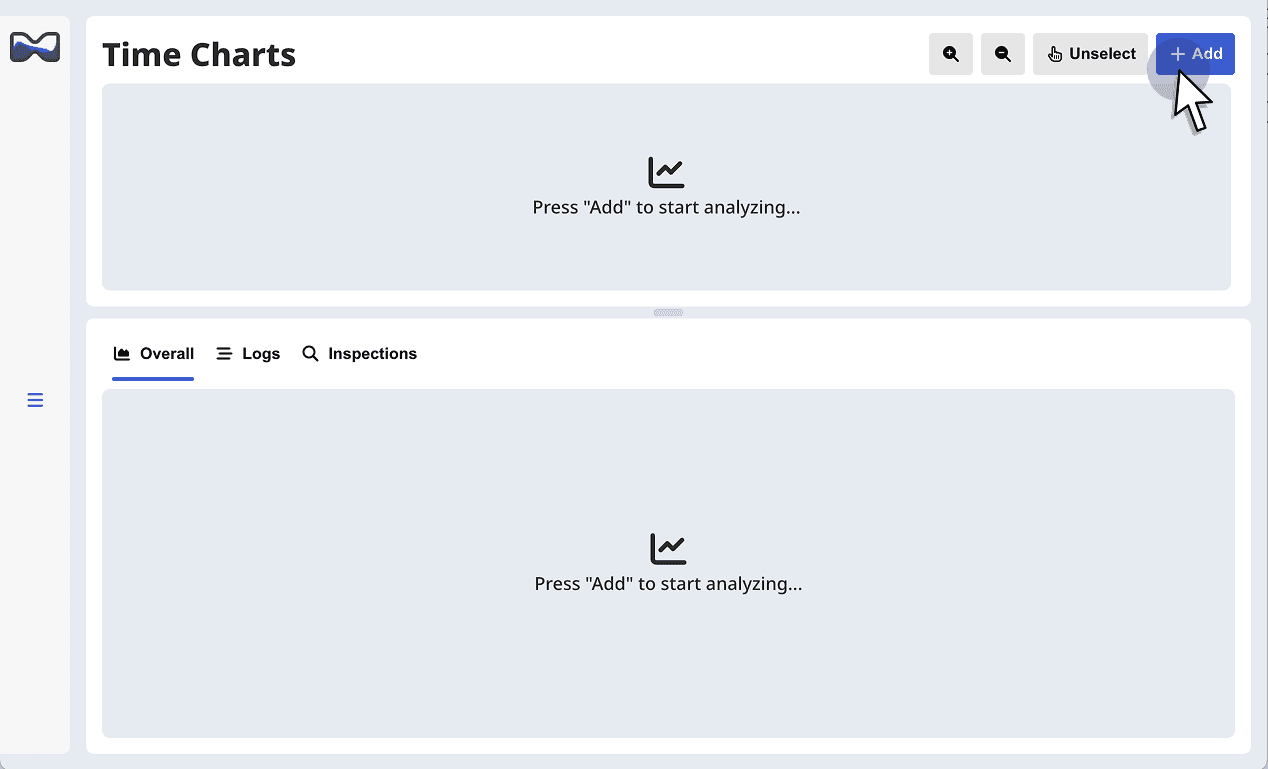
When you first open Chronos, the dashboard is empty. You need to create a container for your logs.
clicking add button
clicking add button
  1. Navigate to the top-right corner of the dashboard.
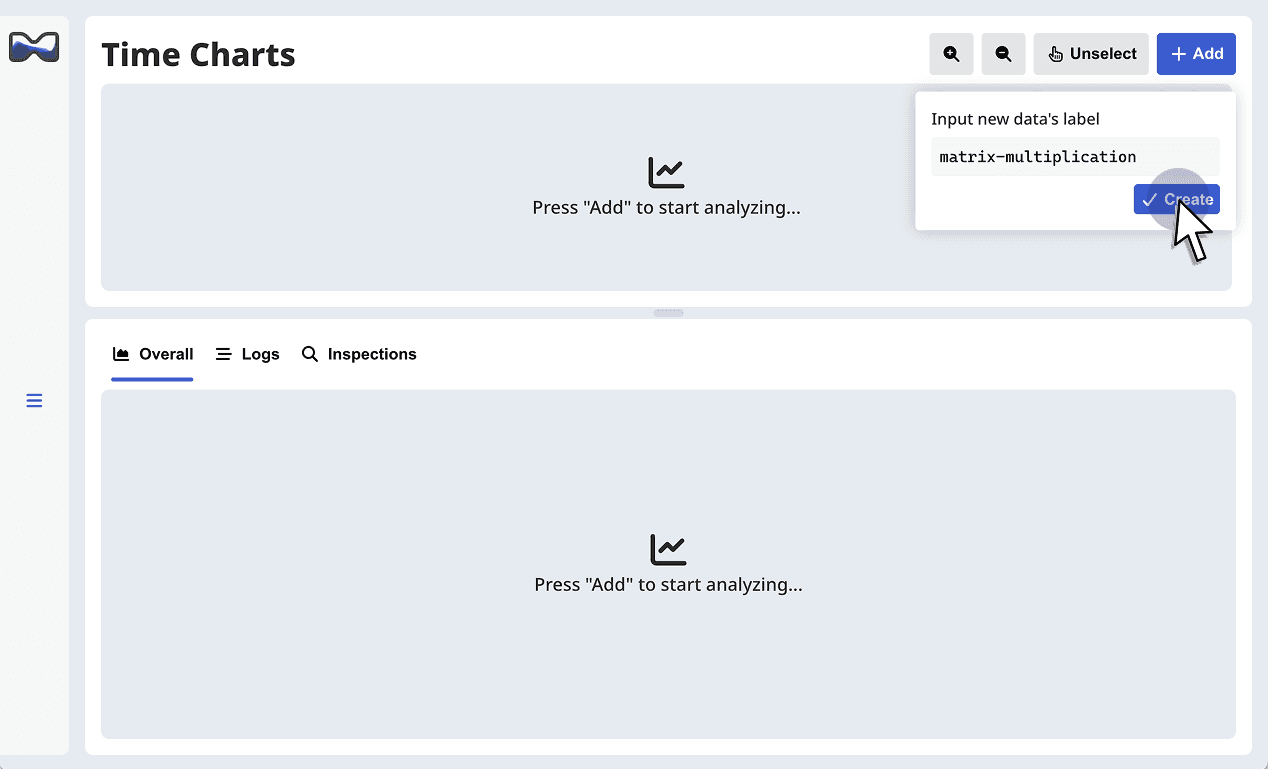
  2. Click the + Add button.
  3. Type in a label for this data.
  4. A new "Data Block" will appear in the main workspace. This block represents a single simulation run or a specific trace segment.

Step 2: Input Simulation Logs

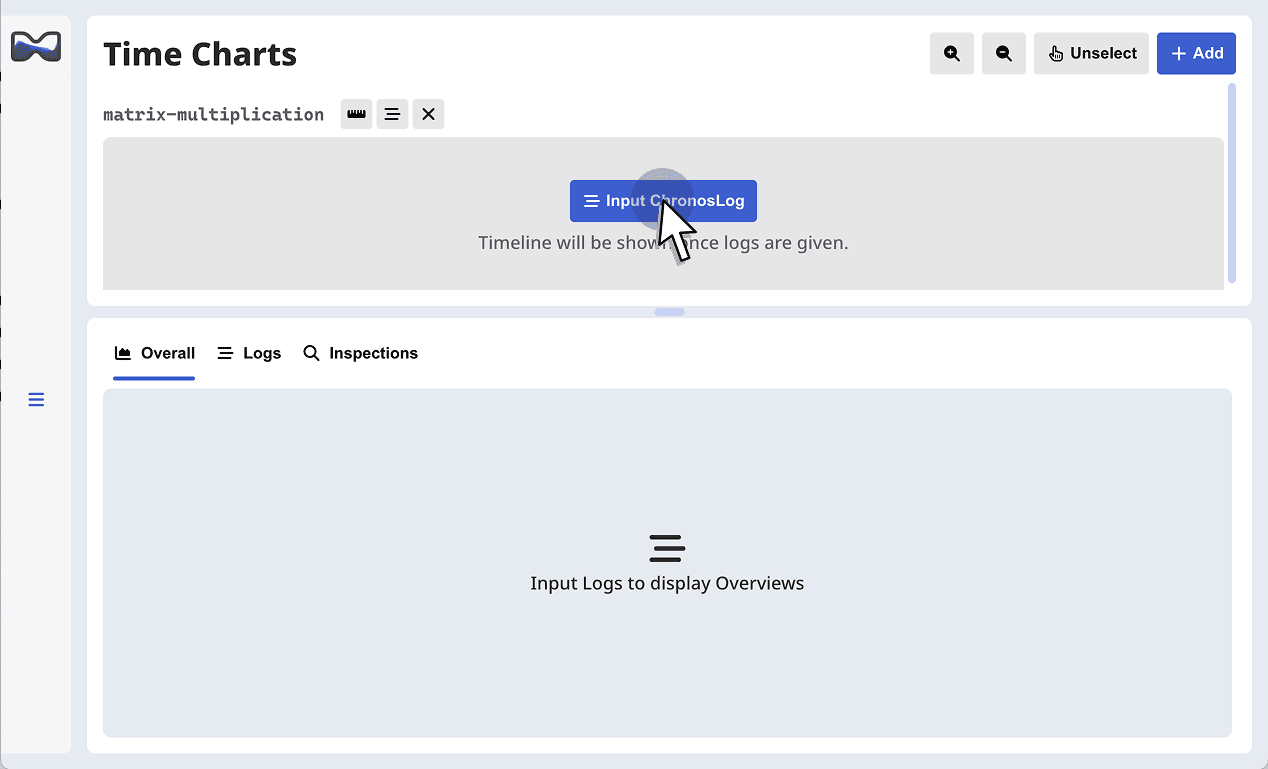
Next, feed your raw simulation logs into the Data Block.
clicking add button
clicking add button
  1. Locate the header of your new Data Block.
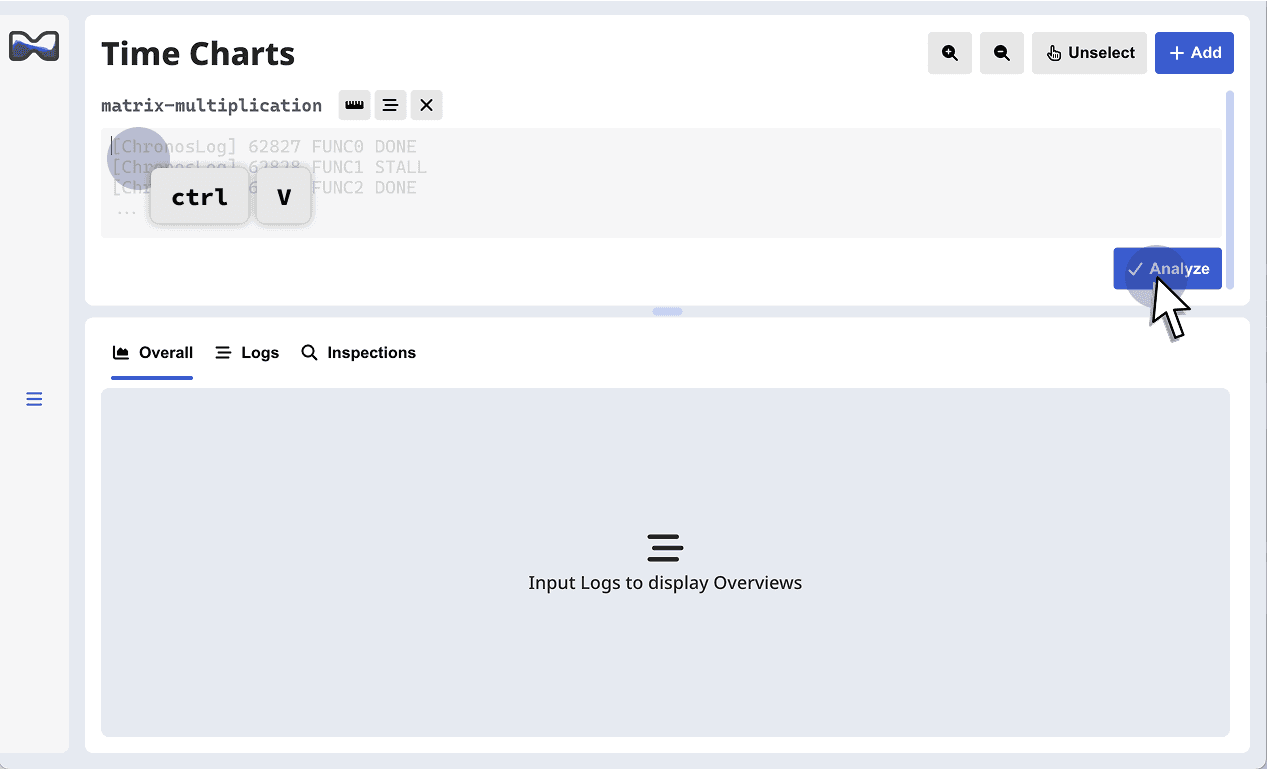
  2. Click the Input ChronosLog button.
  3. A text input field will expand.
  4. Paste your formatted logs (starting with [ChronosLog]) into this area.

Step 3: Generate Visualization

Once the logs are pasted:

  1. Click the Analyze button below the text area.
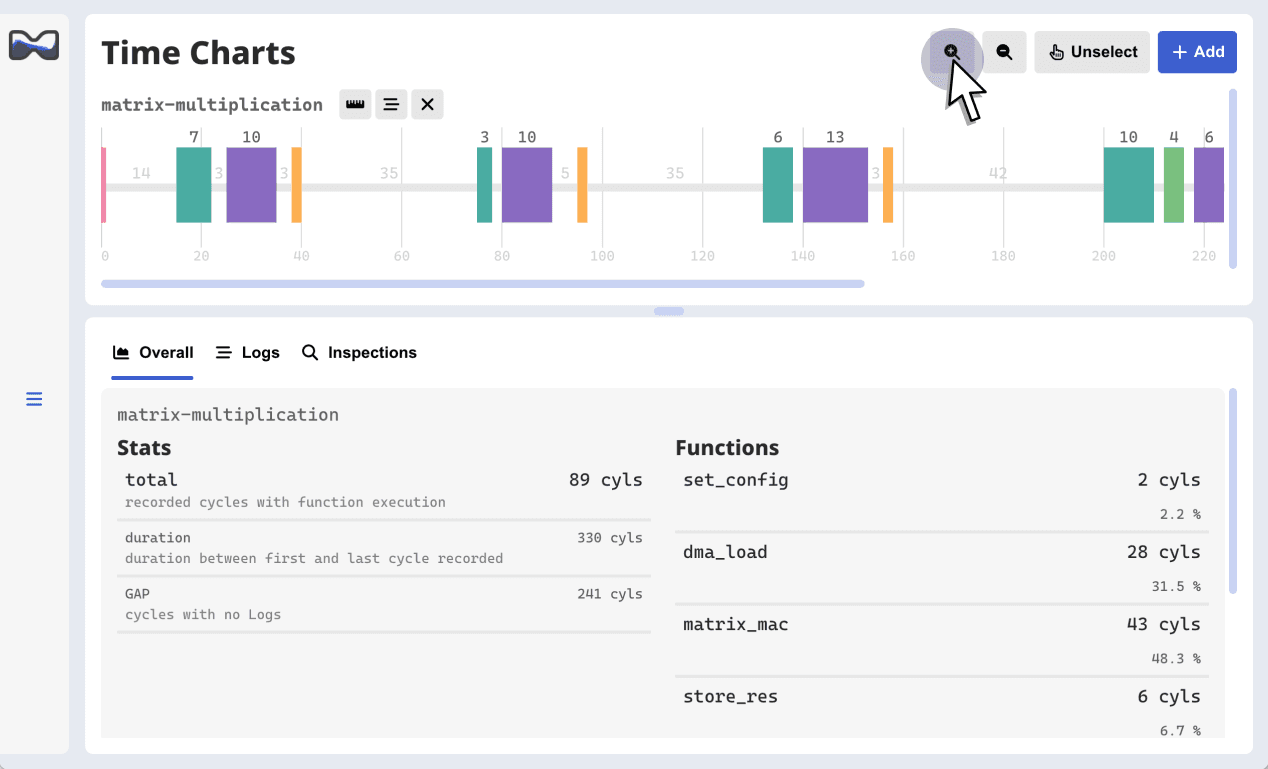
  2. Chronos will instantly parse the data. The timeline (Gantt chart) will be rendered, displaying the execution flow of your custom instructions.

Interactive Features

Zoom & Navigation

You can adjust the time scale to view the entire execution flow or focus on specific clock cycles.
clicking add button
  • Zoom Controls: Use the zoom buttons (or slider) to change the pixel-per-cycle ratio.
    • Zoom In: To see individual cycle gaps and short stalls.
    • Zoom Out: To get a high-level overview of long-running processes.

Inspector Panel (Detailed Metrics)

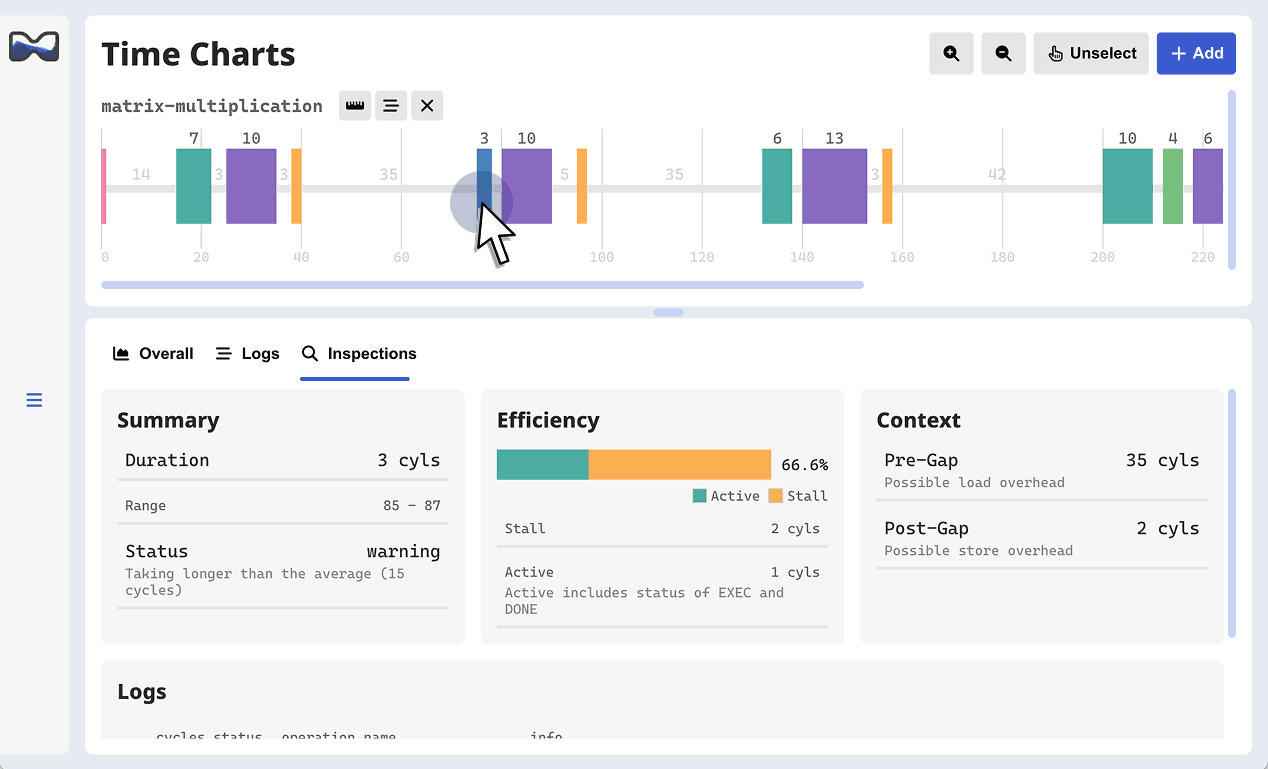
To analyze the performance of a specific instruction:
clicking add button
  1. Click on any colored block (Instruction Ribbon) within the timeline.
  2. The Inspector Panel will open (typically on the bottom half).
  3. Here you can view critical metrics such as:
    • Overall Cycles: Total duration of the instruction.
    • Efficiency Rate: The ratio of active execution (EXEC) versus memory stalls (STALL).
    • Context: Cycle gaps before and after the instruction (Software Overhead).
    • Raw Data: Detailed attributes like memory addresses or burst sizes.

Comparing Multiple Traces

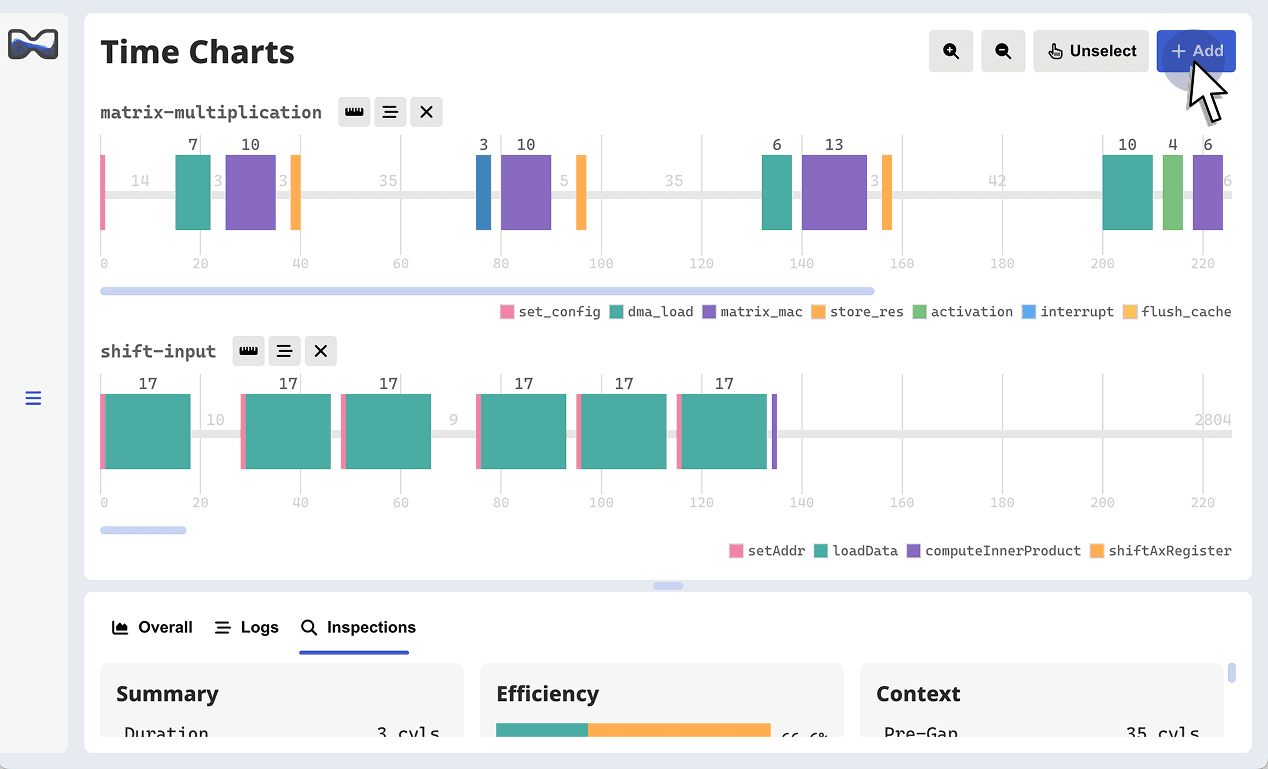
Chronos supports displaying multiple time charts simultaneously. This is ideal for comparing performance before and after optimizations (e.g., "v1" vs "v2") or analyzing different simulation scenarios side-by-side.
clicking add button
  1. While a timeline is already displayed, click the + Add button again.
  2. A new Data Block will appear below the existing one.
  3. Input a different set of logs into the new block and click Analyze.
  4. You can now visually compare the execution flows, latencies, and gaps between the two traces on the same screen.
You're All Set! 😄

You've completed the tutorial! Now, start analyzing your real data on the Dashboard. We welcome any feedback or suggestions via the Contact page, and contributions on GitHub. (Remember, Chronos is fully open-source!)

Visit us with PC.

Chronos only supports environment with screen width larger than 635px.

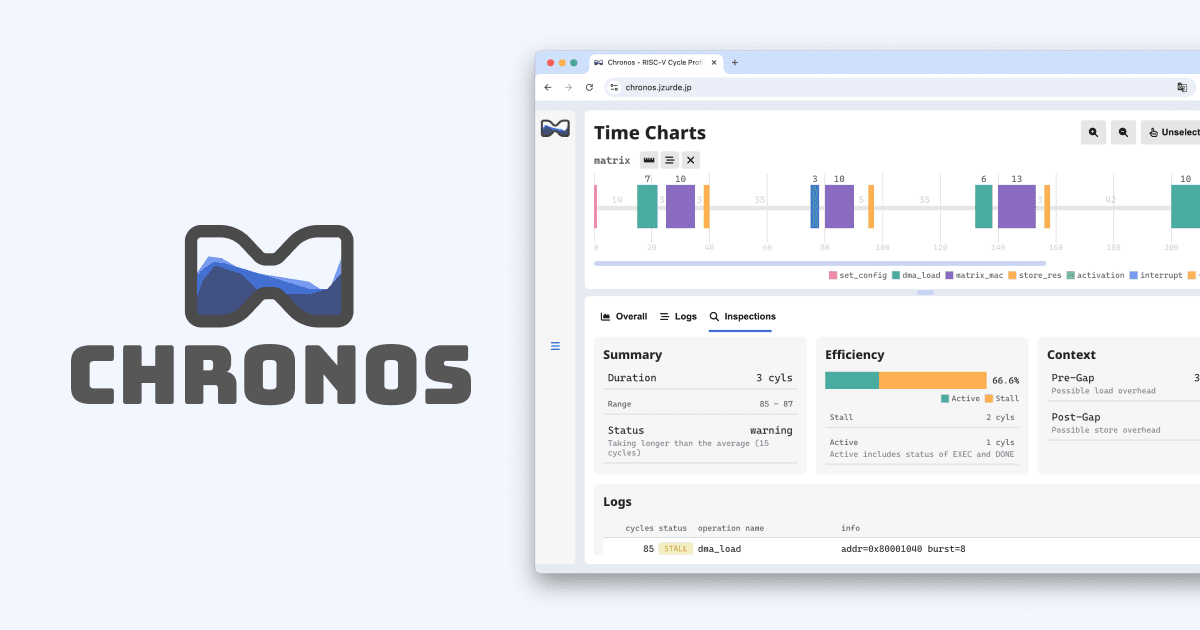
Chronos screen shots with logo

What is Chronos?

Chronos is a web-based profiling and visualization tool designed specifically for RISC-V custom instruction development and cycle-accurate simulator analysis.

While standard waveforms (like .vcd) are excellent for debugging signals, they are often too granular for performance tuning. Chronos bridges the gap between hardware simulation and software profiling by converting cycle logs into an interactive Gantt chart. This allows developers to instantly visualize instruction latency, memory stalls, and software overheads.

Key Features

  • Cycle-Accurate Visualization: Maps every execution cycle to a visual timeline, preserving the exact duration of custom instructions.
  • Stall Analysis: Distinguishes between active execution (EXEC) and pipeline stalls (STALL), helping you identify memory bottlenecks immediately.
  • Overhead Detection: Automatically detects "Gaps" between custom instructions. These gaps reveal hidden software overheads (such as loop control, branching, or compiler inefficiencies) that are often invisible in standard hardware simulations.
  • Zero-Setup: Runs entirely in the browser using text-based log input. No installation or complex environment configuration is required.

Use Cases

  • Custom Extension Profiling: optimizing the latency of new RISC-V instructions (e.g., Matrix acceleration).
  • HLS (High-Level Synthesis) Verification: confirming that synthesized hardware behaves with the expected throughput and latency.
  • Compiler Optimization: measuring the ratio of useful computation time versus control flow overhead.

Privacy & Security

Chronos is designed with security in mind.

  • Client-Side Only: All processing is performed locally in your browser using JavaScript.
  • No Data Transmission: Your log data is never sent to any external server or cloud storage.
  • Open Source: You can audit the source code in this repository to verify that no hidden communication exists.